Nest a job from your DXF drawings
Drop your DXF or GEO files, set material and sheets. You get the nest first, then the price.
How it works: after the upload, which files, shapes, who can open the result
Upload the drawings for one job and enter the sheet sizes you stock. Nest&Quote nests the job on each size, checks every sheet and keeps the size that uses the least steel. It runs in the browser, with nothing to install.
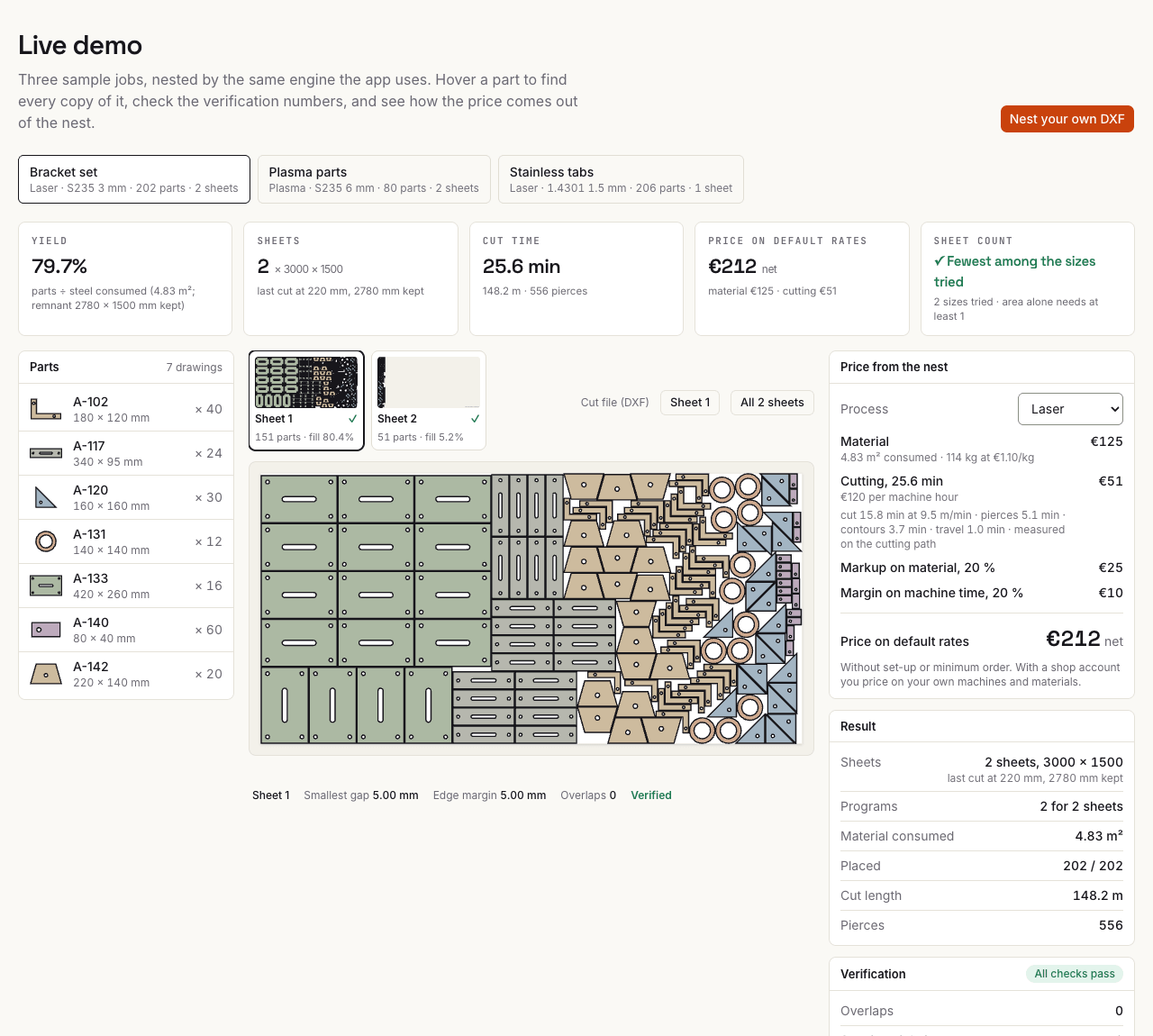
Want to see a result before you upload anything? The demo has sample jobs that are already nested and checked.
Skip to the form See a sample nest first
What happens after you upload
- You set the job's material and thickness, and a part's own where it differs, a quantity for each part and up to eight sheet sizes. Each material and thickness is nested on its own. Part gap and edge margin start from a suggestion; change them if your machine needs more. Mark a part as bent and it only turns 180°, so it keeps its grain.
- The job is nested on every sheet size you entered. The effort setting decides how long it searches; the form shows the time for each setting.
- The size that uses the least steel is kept. The other sizes stay listed with their sheet count and steel in m², so you can compare them.
- Every sheet is checked for overlaps, part gap, edge margin and parts outside the sheet. The smallest part gap and edge margin measured are printed next to the values you asked for.
- The nest is a drawing you can inspect, not a picture. Hover a part to see its code and size, switch between sheets, and print every sheet for the floor.
The result also shows yield (the share of steel that became parts, in %), steel consumed in m², cut length in metres, the number of pierces and, where there is one, the remnant left on the last sheet.
Which files work
- DXF or TRUMPF GEO, up to 5 MB per file.
- Units come from the file: inches, centimetres and metres are converted. A file with no units set is read as millimetres.
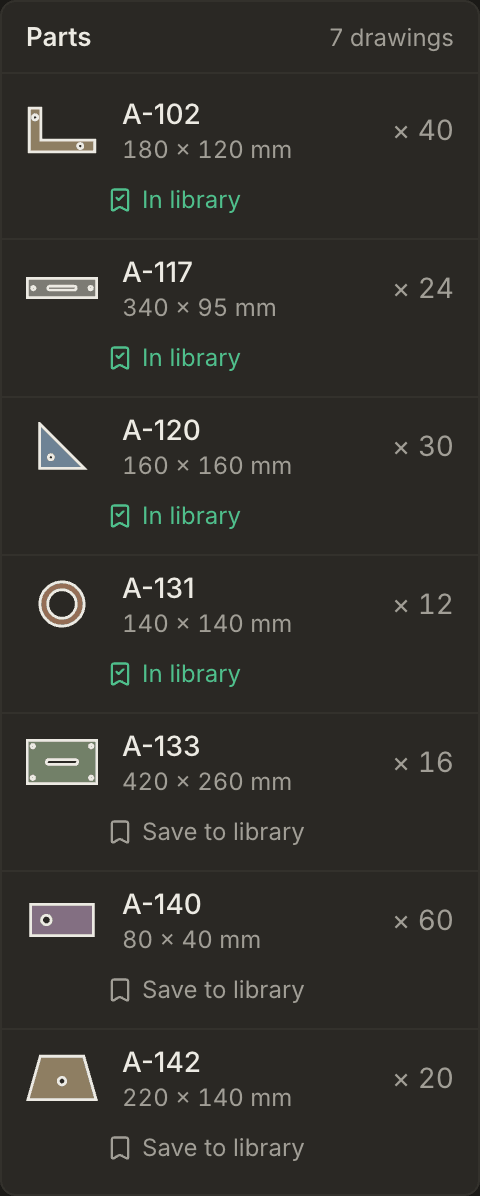
- One part per file. The file name becomes the part code, and you can change it. If a file holds more than one part, the largest is nested and the result says so.
- Closed outlines. Open contours are ignored, and the result counts them.
- A part wider than every sheet you entered is not nested. It is listed under "Not nested" with the reason.
If a CAD export needs cleaning up, the DXF guide goes through each of these cases and how to fix it.
No drawing? Add a shape
When the customer sends only dimensions or a sketch, add the part as a shape: a rectangle, a disc or ring, a plate with holes, a flange, a gusset or a slotted plate. Type the dimensions in millimetres and check the preview; holes that come too close to the edge or to each other are marked before the part goes into the job. The shape is added as a DXF with a part code from its dimensions, such as RECT-200x100, and is nested, checked and priced like any drawing. Bent parts (an L-angle, a U-channel or a Z-profile) go in as their flat pattern: the flat length comes from the legs, thickness and bend radius after DIN 6935, or from your own bend deduction, and the bend lines are counted for bending.
Who can open your result
Drawings you upload here are used for this nest only and are not tied to an account unless you save the job to one. Until then, only the browser you uploaded from can open the result; sending the link to another device does not open it there. Without an account a job is kept for 7 days; after that it is removed, with its drawings.