How it works
From drawing to checked sheet, quote and machine, in five steps
For shops that cut flat stock: laser, plasma, waterjet, router. Nest&Quote works in the browser, in English and German.
- In: the DXF files your CAD already exports, or TRUMPF GEO files, the material and thickness, quantities, and the sheet sizes you stock.
- Out: checked sheets to print, a price worked out from the nest on your rates, a quote as a PDF, and nested DXF files or G-code programs for the machine.
The whole loop in 35 seconds · Silent. Click a moment to jump to it.
1. Drop the drawings

Drag the job's DXF files onto the form: one drawing per part, in millimetres. Each file becomes a line with a part code, taken from the file name and editable, and a quantity.
Tick ‘Bent part’ for anything that goes to the press brake afterwards. Its rotation is limited to 180°, so the grain stays the way you drew it.
Each drawing is read as closed outlines with their holes. When a file has a problem, the result names the part and says what was wrong instead of guessing:
- open contours, which were ignored
- several outlines in one file; the largest one was nested, and you can choose another
- a drawing sheet instead of a cut file: its frame and title block were left out, and a part taken from a view is marked for you to check
- no closed contour large enough to be a part
- a part wider than any sheet you listed
- a file that could not be read
Preparing a DXF for cutting explains each note and how to fix it.
2. Pick material and sheets
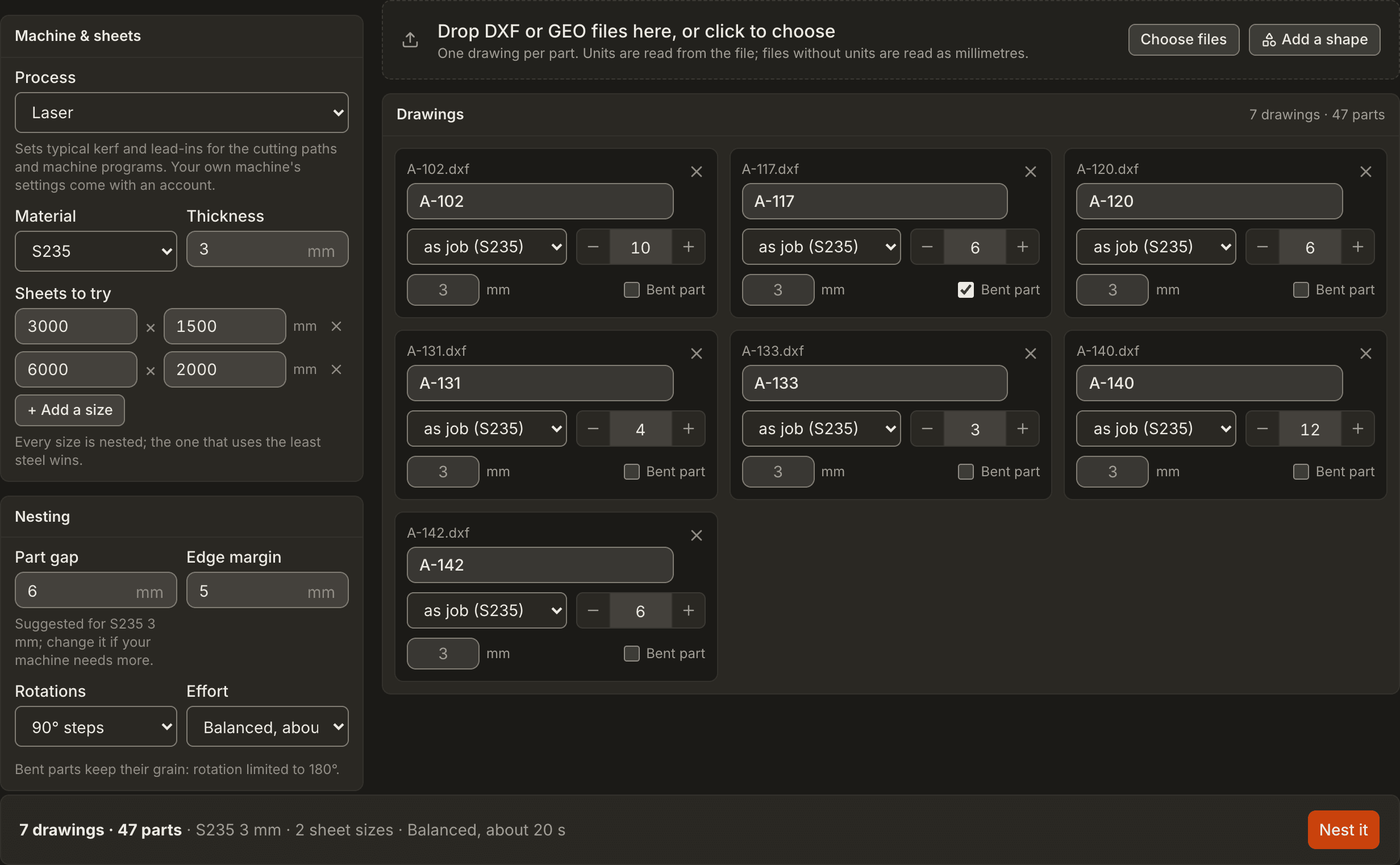
Choose the material and thickness, for example S235 at 3 mm or 1.4301 at 1.5 mm. Then list the sheet sizes you stock, for example 3000 × 1500 and 2500 × 1250 mm. Every size on the list is nested, so you do not have to decide beforehand which one suits the job.
Part gap and edge margin are suggested for the material and thickness. They are suggestions: if your machine needs more, change them. You can also restrict rotation to 90° steps, 180° only or none, and set how much time the nester spends on the job. Then press ‘Nest it’.
3. Inspect the nest
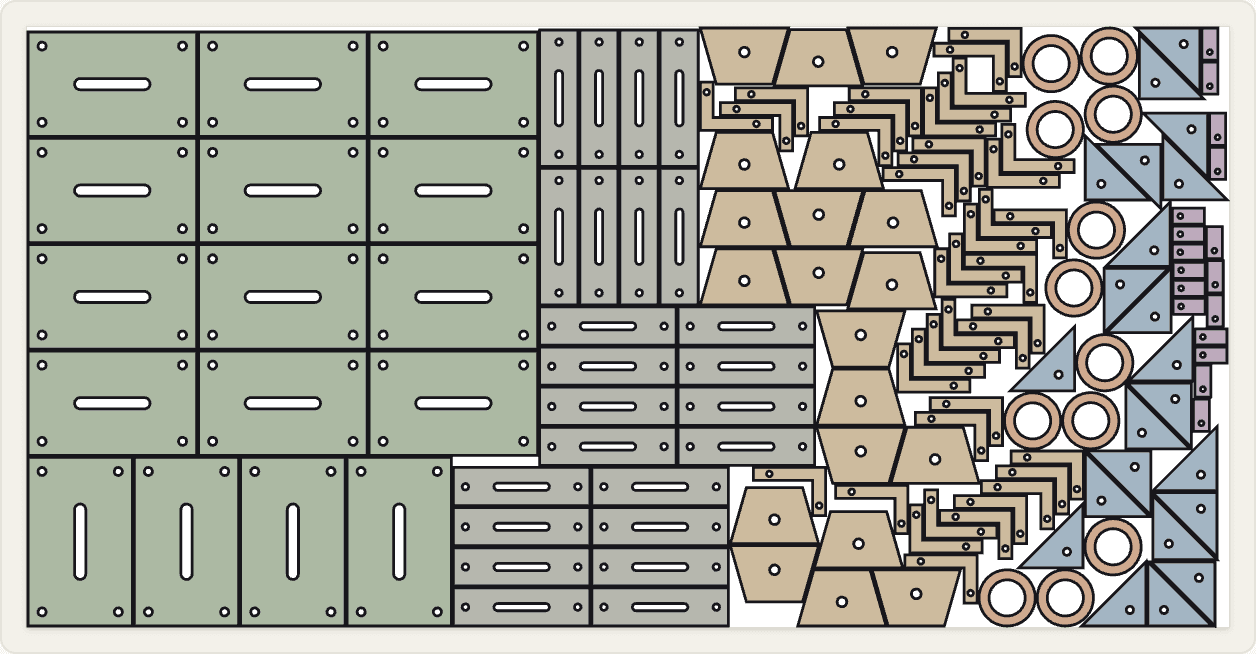
Nest&Quote nests the job on every sheet size you listed and keeps the one that uses the least steel. ‘Other sheets tried’ lists each size with its sheet count and the steel it would consume in m², so you can see why that size was chosen.
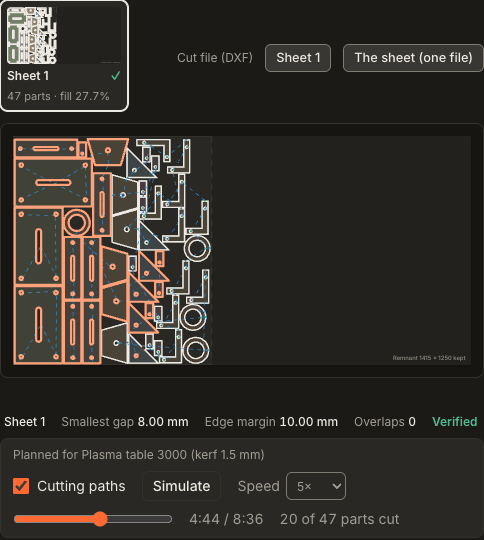
Every sheet is checked before you cut it: overlaps, part gap, edge margin, and parts outside the sheet. The smallest part gap and the smallest edge margin on the sheet are printed next to the value you asked for. A pass is a number you can read.
The nest is a drawing, not a picture. Hover over a part to see its code, its size and how many sit on that sheet. Each sheet has its own tab with its part count and how much of it is used. The result gives:
- yield: the share of the steel consumed that became parts (material utilization), as a percentage
- sheets used, and steel consumed in m²
- parts placed against parts requested
- cut length and pierces
- where the last sheet ends and how much of it is kept as a remnant
Parts that could not be nested are listed with the reason.
Part gap and edge margin explains what each check measures.
4. Price the job and build the quote
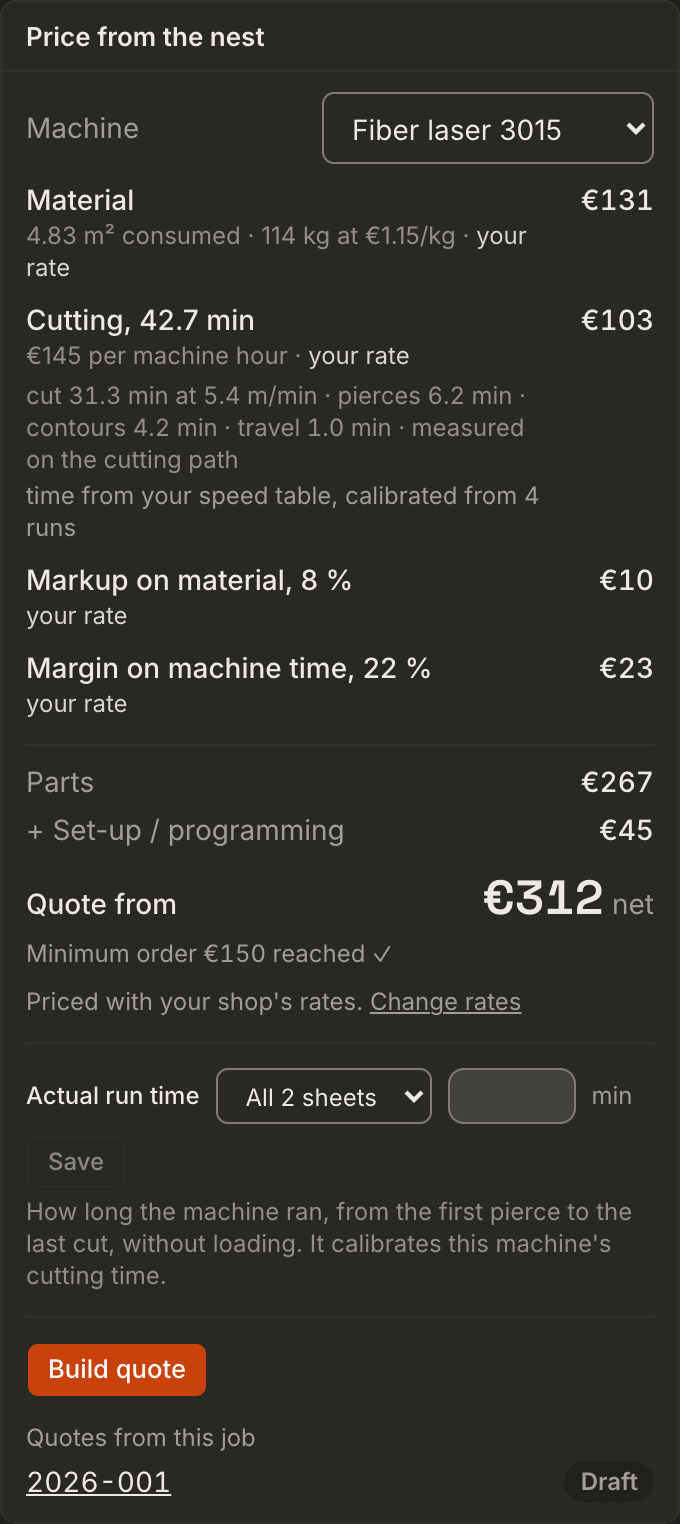
The nest prices the job:
- Material from the steel consumed, in m² and kg
- Cut time from the cut length, the pierces, the contour starts and the travel along the cutting path
- Markups: one on material, one on machine time
Each line shows the quantity from the nest, the rate applied to it and whether that rate is yours or a default. Without an account the rates are defaults, typical for the process. With an account the job is priced on your machines, with their hourly rates and speeds, and on your materials and prices, and the cut time can be calibrated from real run times. The panel shows the way to the quote: parts, plus set-up, up to the minimum order.
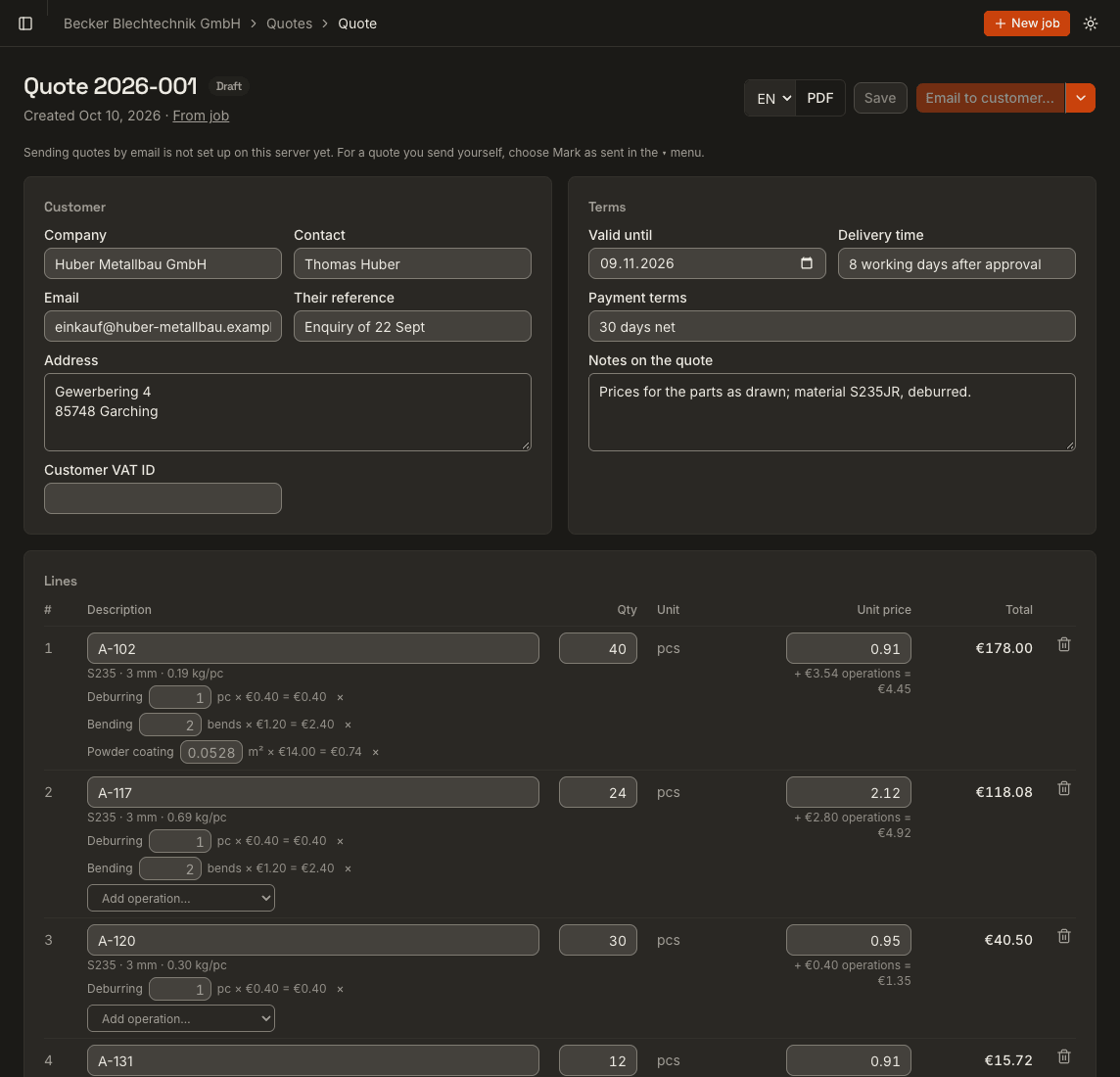
Build quote turns the nest into a quote with one line per part. Add operations such as bending, deburring or coating to the part lines, flat lines such as packing, an express surcharge, price breaks at the quantities you list, and the VAT mode (standard, EU business customer, export). The quote prints as a PDF in German or English.
More on quoting.
5. Take it to the machine
‘Print sheets’ puts every sheet on its own page for the floor, and most browsers can save the pages as a PDF. For the cut, download a nested DXF for each sheet or one DXF with all the sheets, to import into LightBurn, SheetCAM or Fusion.
The nest also comes with cutting paths: kerf compensation, pierce points and lead-ins in the scrap, holes before their part. Tick Cutting paths to see them on the sheet and play the cut back at your machine's speeds. Machine program (G-code) writes the sheet's program from them in a few documented formats (generic G-code, EIA RS-274D, GRBL laser, QtPlasmaC syntax, touch-off with Z for plasma, router). None is confirmed on a shop's controller yet, so every program is marked: run it as a dry run first. See export formats.
Try it on a job you already know
Take the drawings from a job you quoted last week, and compare the sheets and the steel with what you actually cut.