Guide
Set up your shop: machines, materials and sheets, pricing
Every price Nest&Quote gives is quantity × rate: the steel a nest consumes at your price per kg, the minutes on your machine at its hourly rate, and what you add on top. Three pages under Shop in the app's sidebar hold those rates: Machines, Materials & sheets and Pricing. A first quote never waits for them. Every machine and material rate you have not set uses a default and is labelled default where it is used. This guide goes through the three pages in the order that changes your prices most.
After you create your shop, the overview shows three steps (your machines, your material prices, your sheet stock) and ticks each one off once it is saved.
1. Machines
Add each machine you cut on: its name, its process (laser, plasma, waterjet or router) and its hourly rate. Jobs and quotes are then priced on a machine rather than on a process, and the price panel names it. While the shop has no machine of its own, this page asks for one hourly rate per process instead.
Each machine keeps its cutting settings: the kerf, the lead-in and lead-out with their shape, and the program format of its controller, in which the job page writes the machine program. A setting you leave empty shows its default in grey, and the job page lists the defaults before you cut.
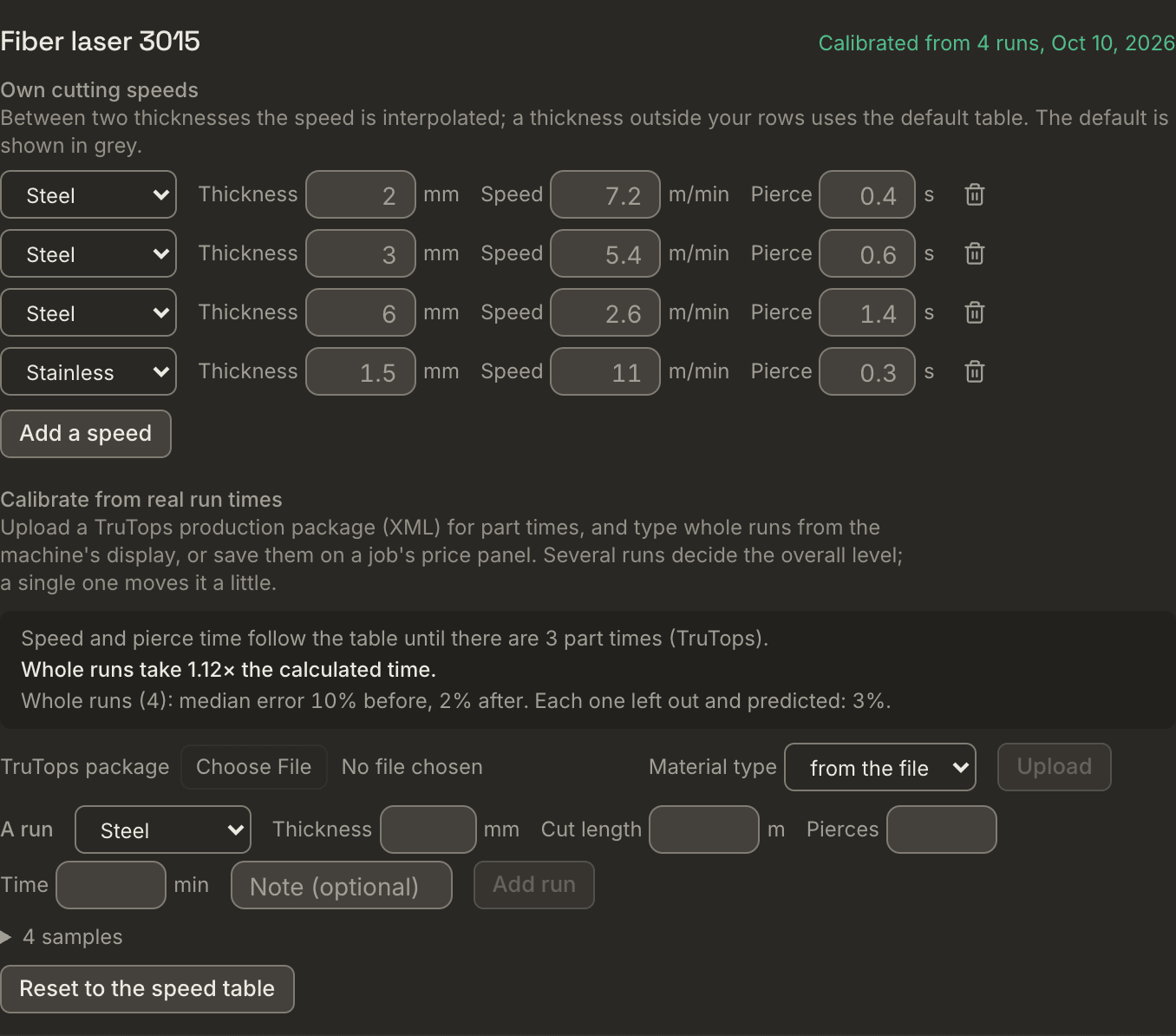
Under the machines sits each machine's time: your own cutting speed and pierce time per material and thickness, over the built-in speed table, and the calibration from real run times. Upload TruTops production packages or type runs from the machine's display, and Nest&Quote fits the cutting time to how your machine really runs and says how far off the table was.
2. Materials & sheets
The materials list is what new jobs offer. The built-in materials take your price per kg: an empty field uses the default shown in grey, and a built-in material you do not cut can be switched off. Add your own grades (DC01, DX51D+Z, Hardox …) with their material type, density and price per kg.
Sheet stock holds the sheet sizes you keep, each for one material or for every material, and for a range of thicknesses. A new job starts Sheets to try with the sizes meant for its material and thickness, or with every size you listed when none is. Remnants left from earlier jobs go into the job itself, under Leftover sheets: they are nested before full sheets.
3. Pricing
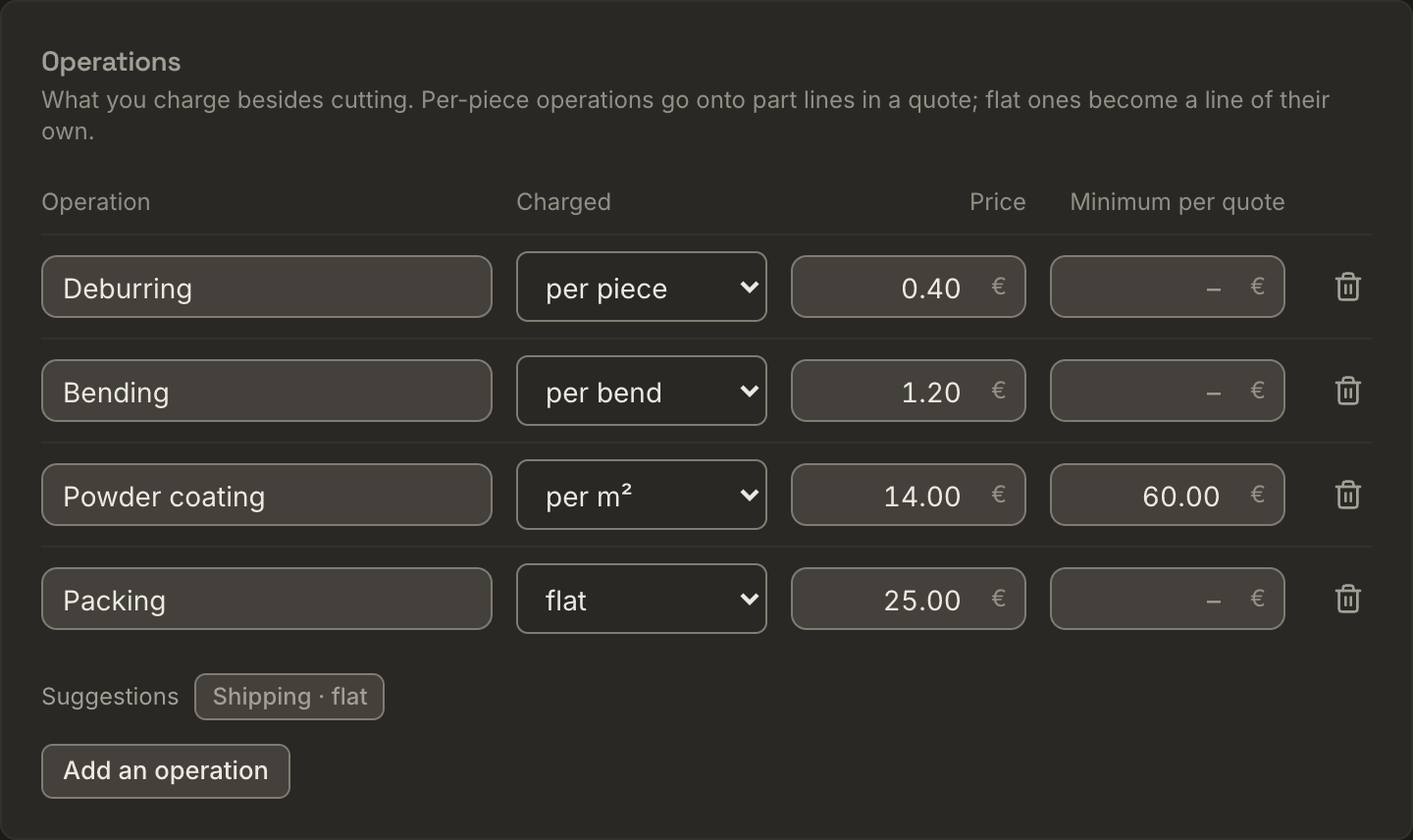
Operations are what you charge besides cutting. The list starts with suggestions that have no price: deburring, bending, powder coating, packing and shipping. Add the ones you offer, rename them or add your own, and type your selling price; an operation is offered on quotes once it has a price. Each one is counted one way: per piece, per bend, per m², per kg, per hour or flat. An operation can have a minimum per quote, as powder coating often has.
On a quote, an operation counted per unit goes onto a part line and into its piece price. Its quantity starts from the part: the bends the import counted, both faces of the part for coating per m², the piece weight for per kg, one per piece; hours start at zero and are typed. Flat operations, such as packing or shipping, become lines of their own.
Markups and rules turn cost into price:
- a markup on material and a margin on machine time;
- a set-up or programming charge, added to every new quote as its own line (new shops start with 25 in their currency);
- a minimum order value: smaller quotes get a surcharge that tops them up to it (new shops start with 30);
- an express surcharge, offered when a quote is marked as express;
- the quantities price breaks show piece prices for, up to six.
These are the starting values for new quotes. Each quote can change its own, and an empty field means none.
Who changes them, and when a change applies
The owner and admins change these pages; the other members of the team see the values. A rate you change applies to new prices and new quotes from then on. A quote keeps the rates and times it was built with.
Your shop's details for quotes (address, VAT number, payment terms, lead time, the quote's language and the reply address) and your team are under Settings.
How each line of a price is worked out: Quoting.