Product · nesting
Sheet metal nesting on every sheet size you stock
Nest&Quote nests the job on each sheet size you enter, keeps the one that uses the least steel, and checks every sheet for overlaps, part gap and edge margin before anything is cut. It runs in the browser. You drop the DXF drawings and get back a nest you can inspect, sheet by sheet.
What goes into a nest
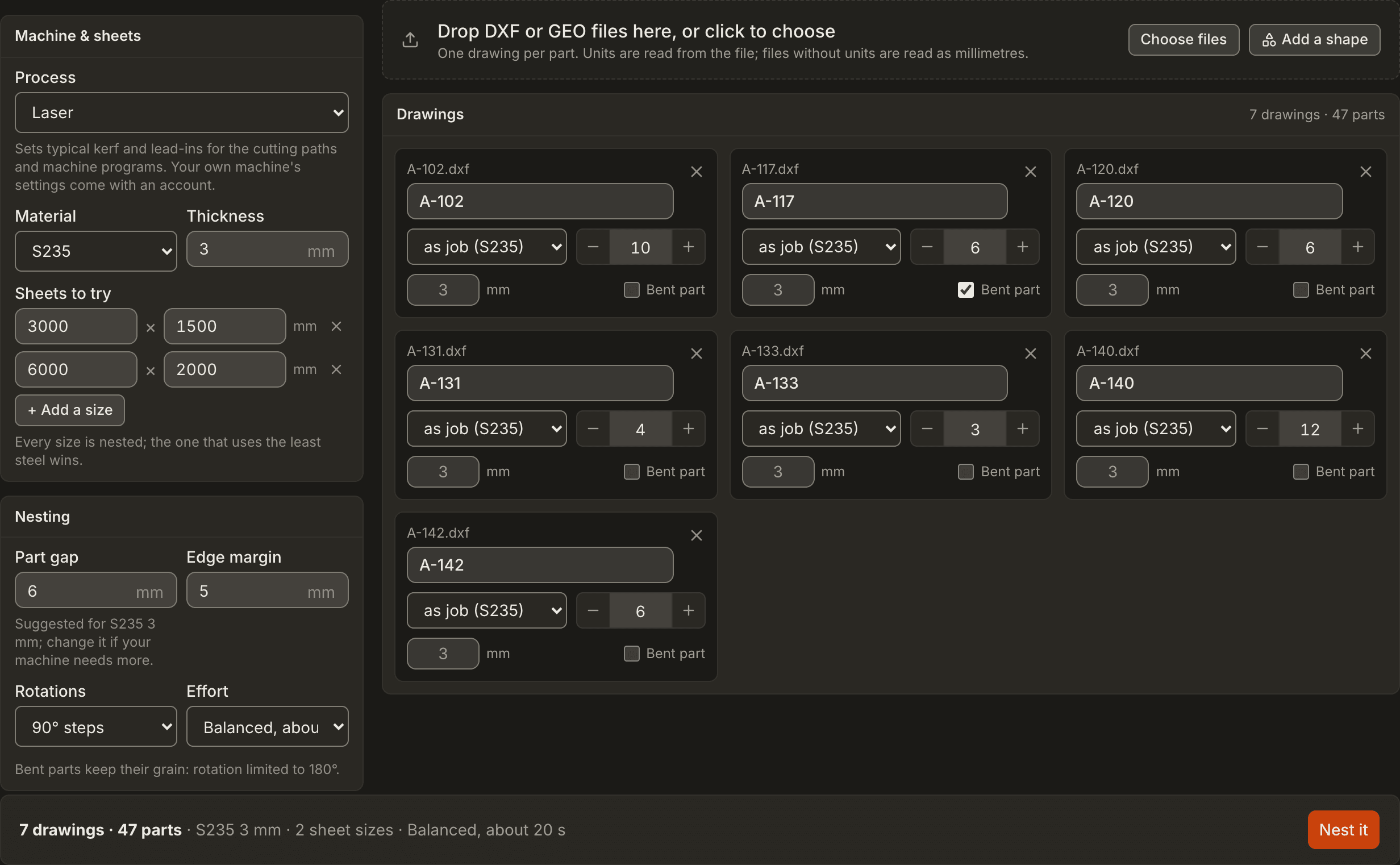
Everything the nest needs is on one form.
- Drawings. DXF or TRUMPF GEO files, one part per drawing; units come from the file. The part code comes from the file name; you can change it.
- Quantities. How many of each part the job needs.
- Bent part. Tick it for parts that go to the press brake. They are only turned by 180°, so the grain runs the way the drawing has it.
- Material and thickness. S235, S355, 1.4301, 1.4404, AlMg3, copper, plywood, MDF or acrylic, or your own materials with an account, and the thickness in millimetres. Each file can have its own: a job in 2 mm and 3 mm is nested once per thickness and quoted as one job.
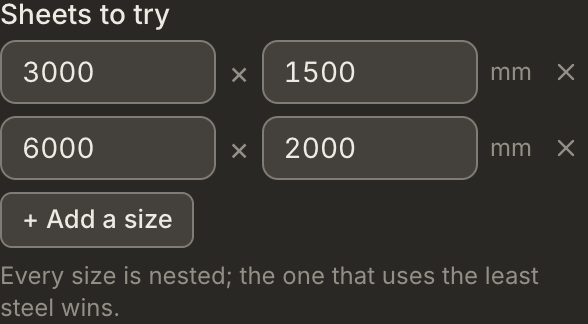
- Sheet sizes you stock. In an account the form starts on your sheet stock, the sizes you keep for that material and thickness (set once on the Rates page). The public nester starts with 3000 × 1500 and 6000 × 2000 mm. Change them or add sizes until the list matches your rack.
- Part gap. Suggested from material and thickness. Set it to what your machine and process need.
- Edge margin. The distance every part keeps from the sheet edge.
- Rotations. In 15° steps, in 90° steps, 180° only, or none.
- Effort. Fast, Balanced or Thorough: more effort is more time for the search, never a coarser or finer method. A first pass tries every sheet size, then the rest of the time goes to the sizes still in the running.
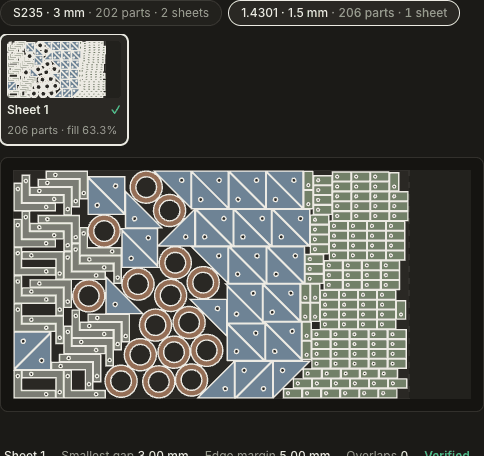
A job with several materials or thicknesses gets one nest per material and thickness, each on its own tab, and one quote for all of them.
Which sheet size is cheapest is measured, not guessed
The sheet size is often chosen before the nest, from experience. Nest&Quote nests the whole job on every size you entered and compares them:
- A size that places every part and passes every check comes ahead of one that does not.
- Among those, the size that consumes the least steel is kept.
- Least steel means the stock the job really uses: every full sheet, plus the length used on the last one. The rest of the last sheet is a remnant you keep, so it does not count against that size.
The result lists every size it tried, with the number of sheets and the square metres of steel each would consume, and marks the one it chose. A size that cannot take a part says why, for example when a part is wider than the sheet. A size that could not place every part is marked incomplete.
The headline figure is Yield, the share of the steel consumed that became parts (material utilization). It is measured on the steel consumed rather than on full sheets, so a half-used last sheet does not pull it down. Below it: the number of sheets, steel consumed in m², parts placed against parts requested, cut length in metres, and pierces (one per outline and one per hole).
Every sheet checked, with the numbers on screen
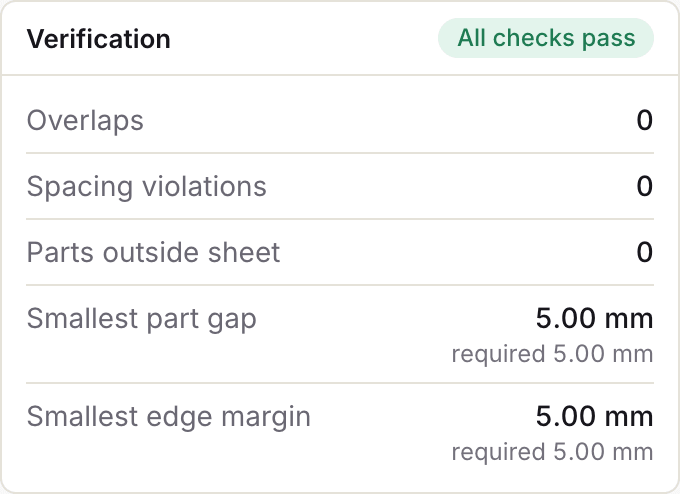
The check is separate from the nesting. After the search has placed the parts, every sheet is measured again on the real part outlines:
| Check | What it measures | Passes when |
|---|---|---|
| Overlaps | Parts that overlap another part | There are none |
| Part gap | The smallest distance between any two parts, and how many pairs sit closer than your part gap | No pair is closer than your part gap |
| Edge margin | The smallest distance from any part to the sheet edge | No part is closer to the edge than your edge margin |
| Outside the sheet | Parts that cross the sheet boundary | There are none |
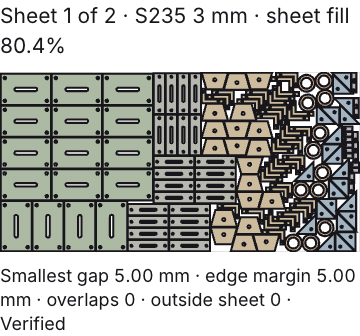
Each sheet's tab gives its sheet fill, the share of that sheet covered by parts. Under the sheet you see the smallest gap, the edge margin, the overlap count and a plain Verified or Check failed. The Verification panel beside it lists each check for that sheet, with the measured value to a hundredth of a millimetre next to the value you asked for, and says whether all sheets pass.
A failed check is shown, not hidden. If no sheet size passes, you still get the nest, marked Check failed, with the numbers that failed. Pass and fail are written out, not only coloured.
What to set, by process and thickness: part gap and edge margin.
A drawing, not a picture
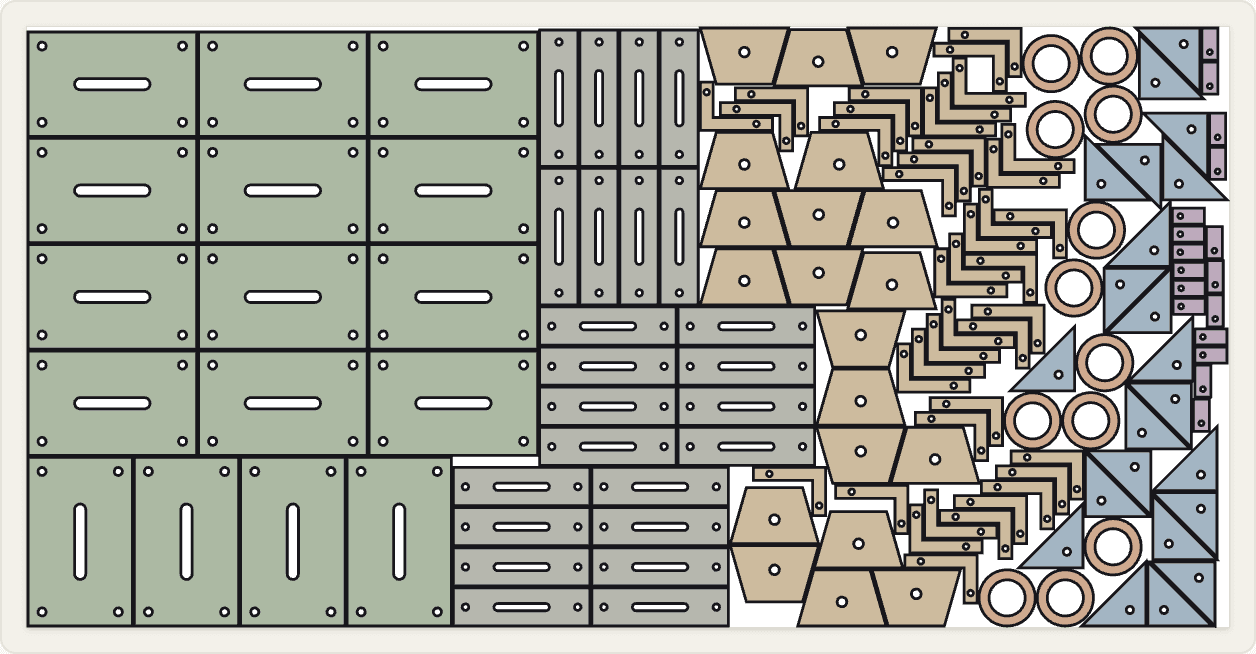
The nest is drawn in your browser from the part outlines and their positions on the sheet. What you inspect is the same geometry that was checked.
- Hover a part. Every copy of it on the sheet lights up, and the line under the sheet gives its part code, its size and how many are on this sheet. Hovering a part in the parts list does the same.
- Sheet tabs. One tab per sheet, each with its part count and its sheet fill.
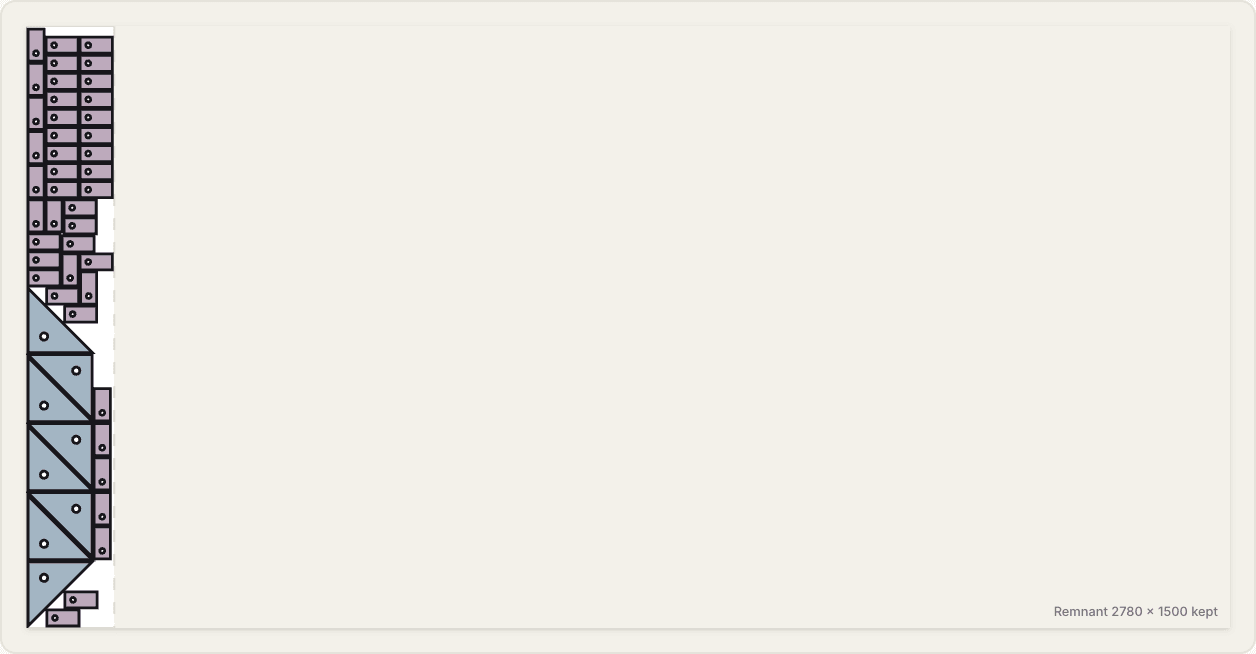
- Remnant band. Where the job does not reach the end of a sheet, the unused length is shaded and labelled, with its size, as the remnant you keep. The result panel says where the last sheet is cut and how many millimetres are left.
- Parts list. Every drawing with its outline, part code, size and quantity.
- Checks. At the top of the result, in three groups. Not nested: drawings that could not be nested, with the reason, for example no closed contour, or a part wider than any sheet you entered. Check these: parts that were nested but want a look, such as an outline taken from a drawing view, a file with several outlines where the largest was nested, or a drawing that names another material. Cleaned automatically: open contours that were ignored, or a drawing sheet whose frame was left out. Click a line and the part lights up on its sheet.
What you take away
- Print. Print sheets puts every sheet on its own page, with the sheet number, material, thickness and sheet fill, and the remnant marked. For the floor or the job folder.
- DXF. A nested DXF for each sheet, or one with every sheet of the job, to open in the CAM or laser software you already run.
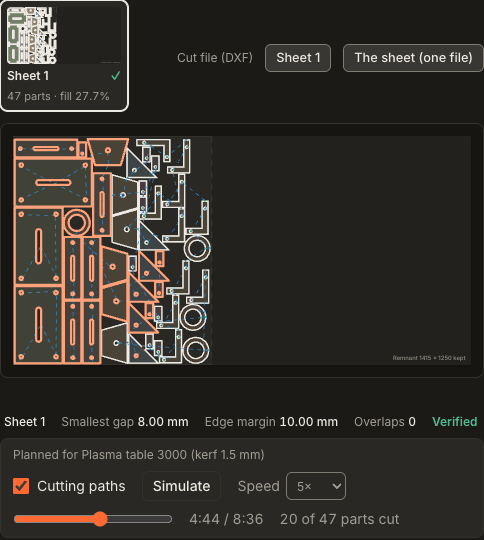
- Cutting paths. Every nest comes with its cutting paths: kerf compensation, pierce points and lead-ins in the scrap, cut order with holes first. Show them on the sheet and play the program back at your machine's speeds. Machine program (G-code) writes the sheet's program from them in a few documented formats (generic G-code, EIA, GRBL laser, QtPlasmaC syntax, touch-off with Z for plasma, router), marked for a dry run.
Input rules and output formats in detail: export. How a quote is priced from the same nest: quoting.
What it does not do yet
- DXF only. No DWG or STEP. If your drawings only exist in those formats, tell us.
- True-shape nesting, no common-line cutting yet. Parts are nested by their real outline, not by the rectangle around them, and small parts can sit in the cut-outs of larger ones. Every part keeps the full part gap to its neighbours; shared cut lines are not used yet.
- A few program formats. Machine programs come out for generic G-code, EIA RS-274D, GRBL laser, the QtPlasmaC syntax, touch-off with Z for plasma, and router programs only, each marked for a dry run: none is confirmed on a shop's controller yet. For other controllers your CAM or post-processor still writes the program.
Questions shops ask
Which drawings can I use? DXF or TRUMPF GEO, one part per file, drawn in millimetres, with closed outlines. Text, arrows and other small fragments are ignored, and so are the frame and title block of a drawing sheet. If a file holds more than one outline, the largest is nested, the result says so and you can choose another. See how to prepare a DXF for cutting.
What does "least steel" mean when the last sheet is only partly used? Full sheets count in full. The last sheet counts only up to where the nest ends, plus the edge margin. The rest of that sheet is a remnant, so it is not counted as steel consumed.
Does it replace my CAM or post-processor? Partly. It decides which sheet size to use and where every part goes, checks the result and plans the cutting paths. For the formats listed on the export page it writes the machine program too, marked for a dry run. For other controllers your CAM still makes the program, from the nested DXF per sheet.
Does it run on a Mac? Yes. Nest&Quote is online nesting software: it runs in the browser, so there is nothing to install on a Mac, a Windows PC or Linux. It is in English and German.
Where do the suggested part gap and edge margin come from? The part gap is suggested from the material and thickness, and the edge margin starts at a default. Both are starting points. Set them to what your machine needs, and every sheet is checked against the values you set.
Try it on a job you have already nested
Take a job from last week and compare the sheets.